Overview
Studio is where the staff of Del Perro Sands build the rooms players use every day. Type /admin and one panel opens with tabs for rooms, furniture, shells, object inspection, saved spots, doors and history. Everything that used to need a separate script, a text file of coordinates or a restart now happens in game, by looking and clicking.
A room is a door somewhere in the world that leads into a housing shell or a real game interior. Staff place the door, pick the shell, mark the way out, then furnish it from a library of thousands of props. Players simply walk up and press E. Rooms can be open to everyone or locked to staff, jobs, gangs, key items, specific characters or a passcode.
Every change is logged with who made it and when, and most of them can be put back. A bad edit at 2 a.m. is one click to undo, not a database restore.
Features
- Build rooms from a qs-housing shell or from a real interior provided by bob74_ipl.
- Each room has a door in the world and a way out inside; players press E at either and the screen fades as they move.
- Room access: everyone, staff, jobs or gangs with a minimum grade, key items, specific citizen ids, or a passcode. Staff always get in.
- Rename, move, copy, delete or teleport to a room, and change its shell or way out.
- Rooms only load for players within 250 m. Inside a shell room the clock and rain pause for that player only.
- Saved looks: every room holds named sets of furniture you can create, copy, rename, switch or delete.
- Interior rooms also keep a bob74_ipl style per look (default, full, empty or custom).
- Place any library object in follow mode, then fine tune by 1 cm and 1 degree (10 cm and 15 degrees with Shift). Up to 400 pieces per look.
- Hide library pieces from the Place list for every admin.
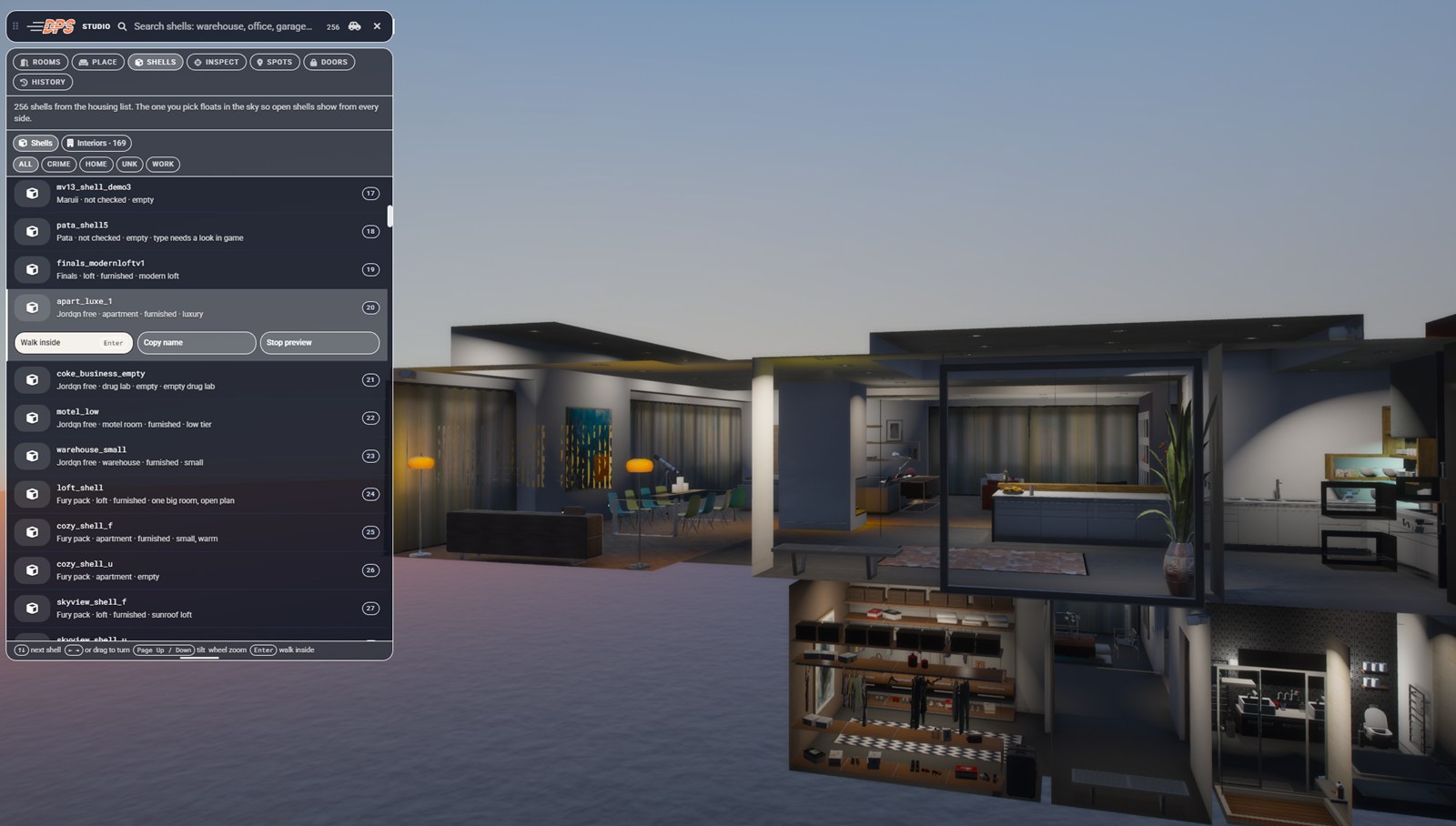
- Preview any shell in the sky, orbit the camera around it, and walk inside before using it.
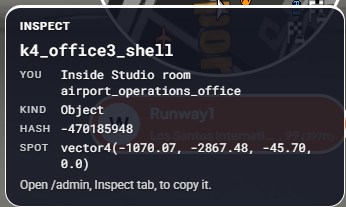
- Hold middle mouse to inspect the object you aim at: model name, type, hash, coordinates, heading and interior. The last 30 scans are kept.
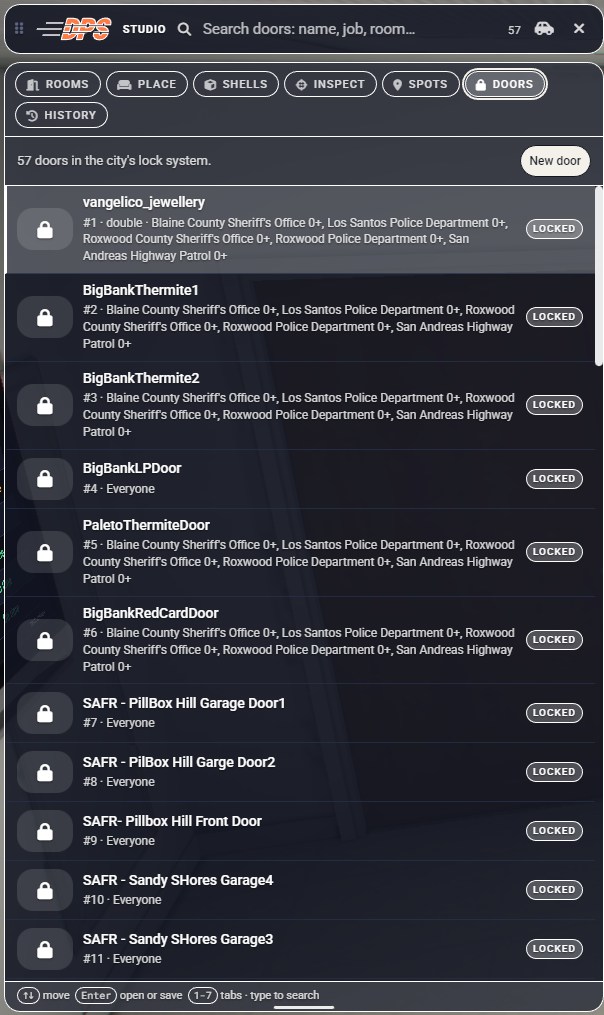
/spotand/possave your position to the database; the Spots tab lists the last 400 and can teleport you to them.- Doors tab for ox_doorlock: rename, lock state, access, auto lock, lockpick and range; create single or double doors by clicking them; remove doors.
- Extra door access options, “Everyone” and “Staff only”, on top of ox_doorlock’s own groups, items, characters and passcode.
- A room can own doors, so changing the room’s access updates all of them.
- History: every room and door change is logged. Restore a room to before a change, bring back a deleted room, or restore a door. 200 snapshots are kept per room.
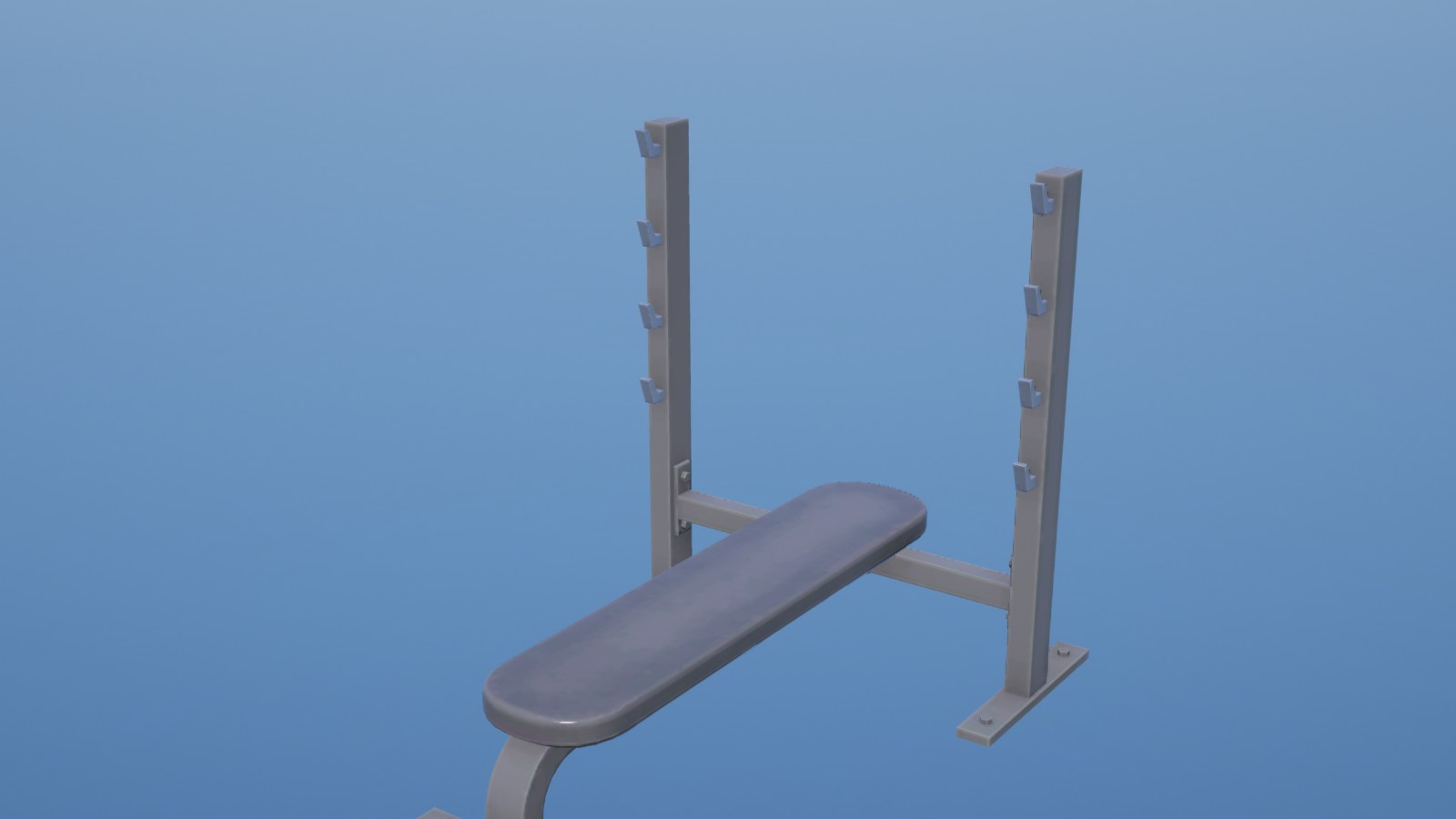
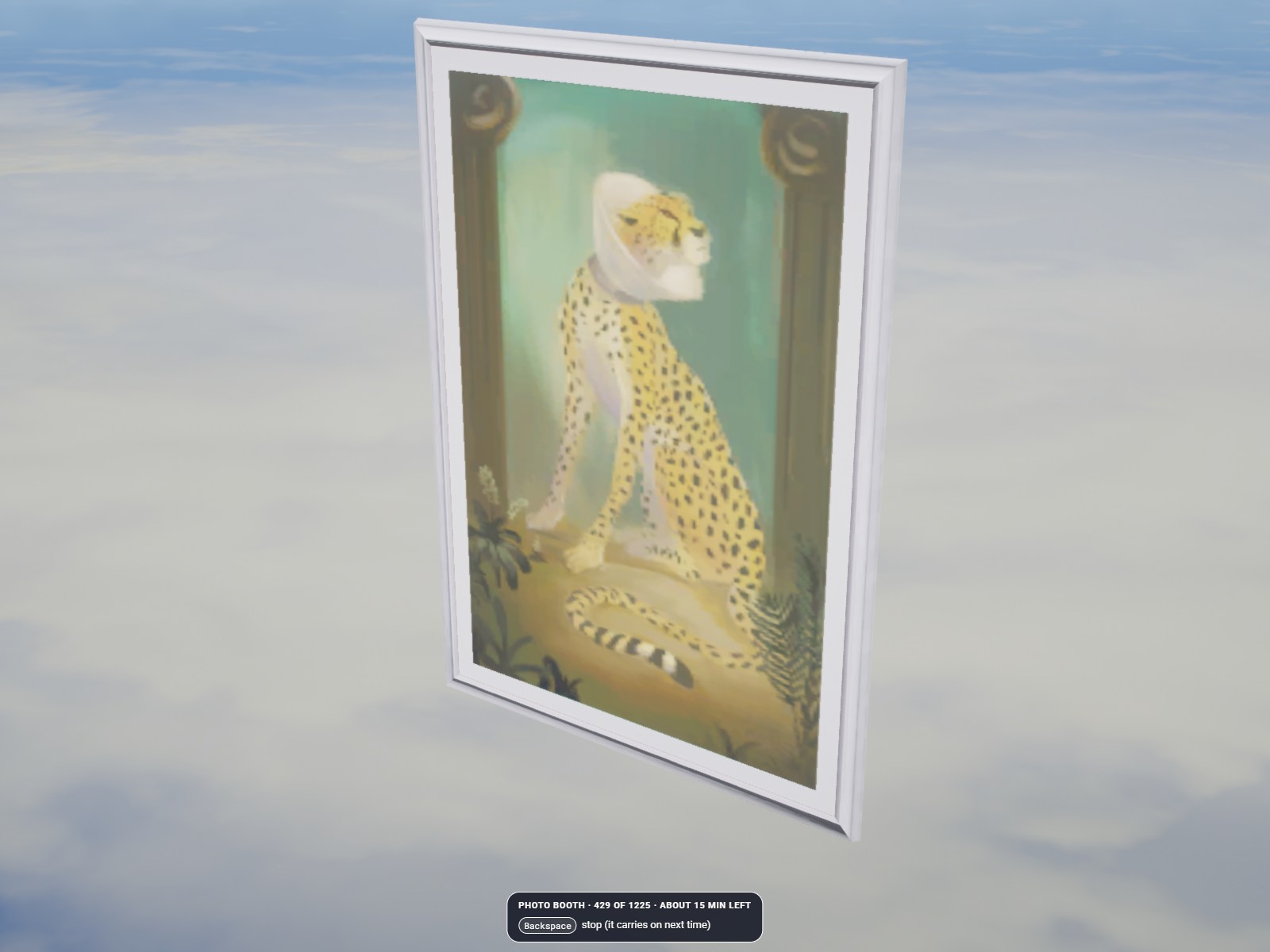
- Photo booth: photographs every library piece alone in the sky, cuts it out and uploads it to Fivemanage so the Place list has thumbnails. Pieces that are too big or never load are left out. The next run continues where the last stopped.
- Map flyover:
/mapflyovertakes a top-down picture of every map pack listed inflyover/targets.jsonthat has none yet.
How it works
An admin types /admin. The server checks the dps.entityselector ace, then the Studio panel opens with seven tabs along the top: Rooms, Place, Shells, Inspect, Spots, Doors and History. Arrow keys move through any list, Enter opens, and typing searches.
Rooms
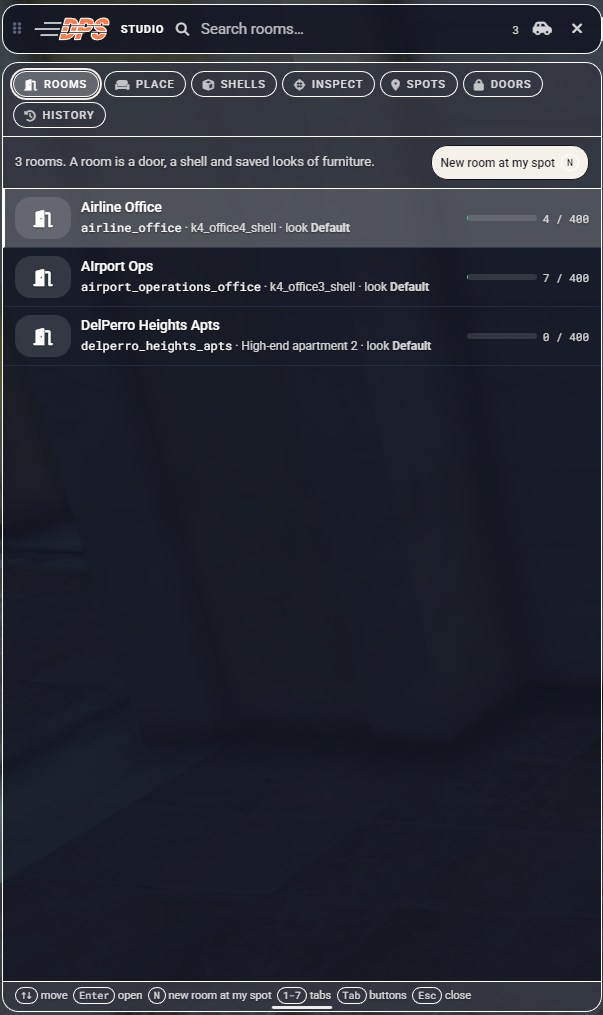
Stand where the door should be, pick a shell or interior, walk inside it and press G to mark the way out. Players walking past see the door prompt and press E to go in; the room and its furniture spawn only while someone is nearby. Shell rooms sit 60 m below their door, and rooms, furniture and doors live in the database, so nothing is lost on restart.
Furnishing a room
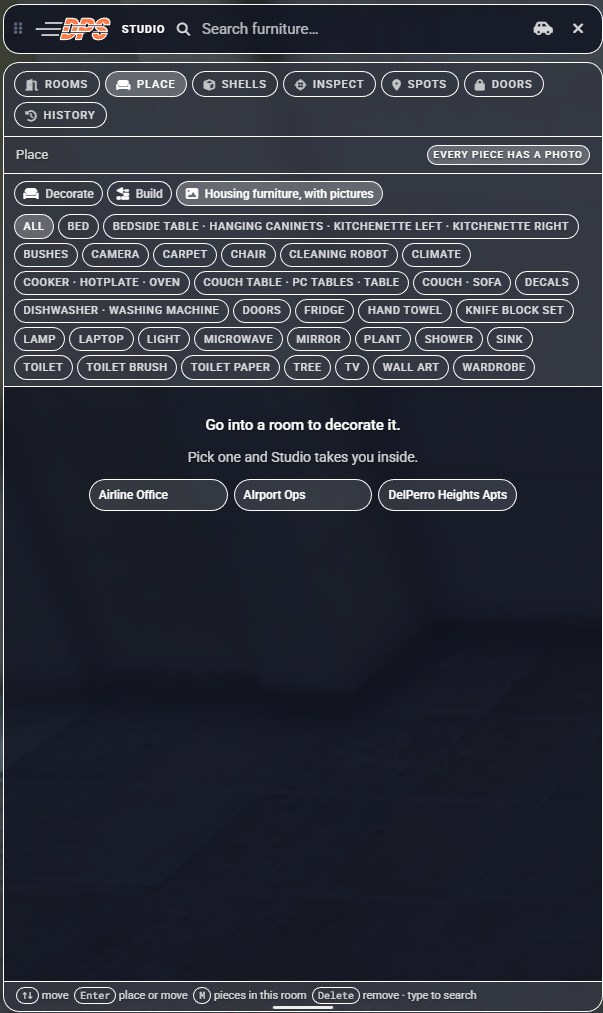
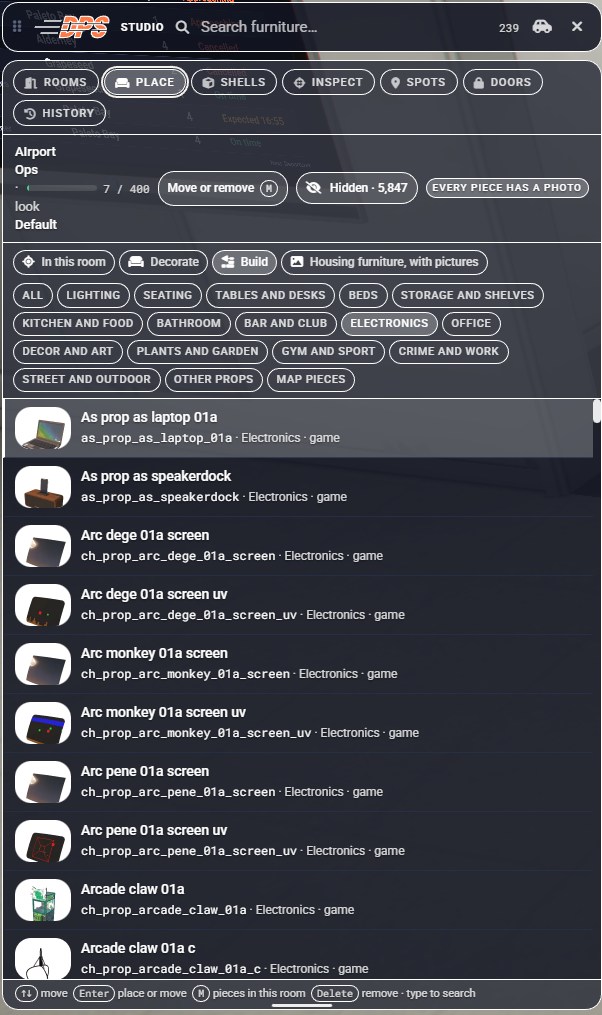
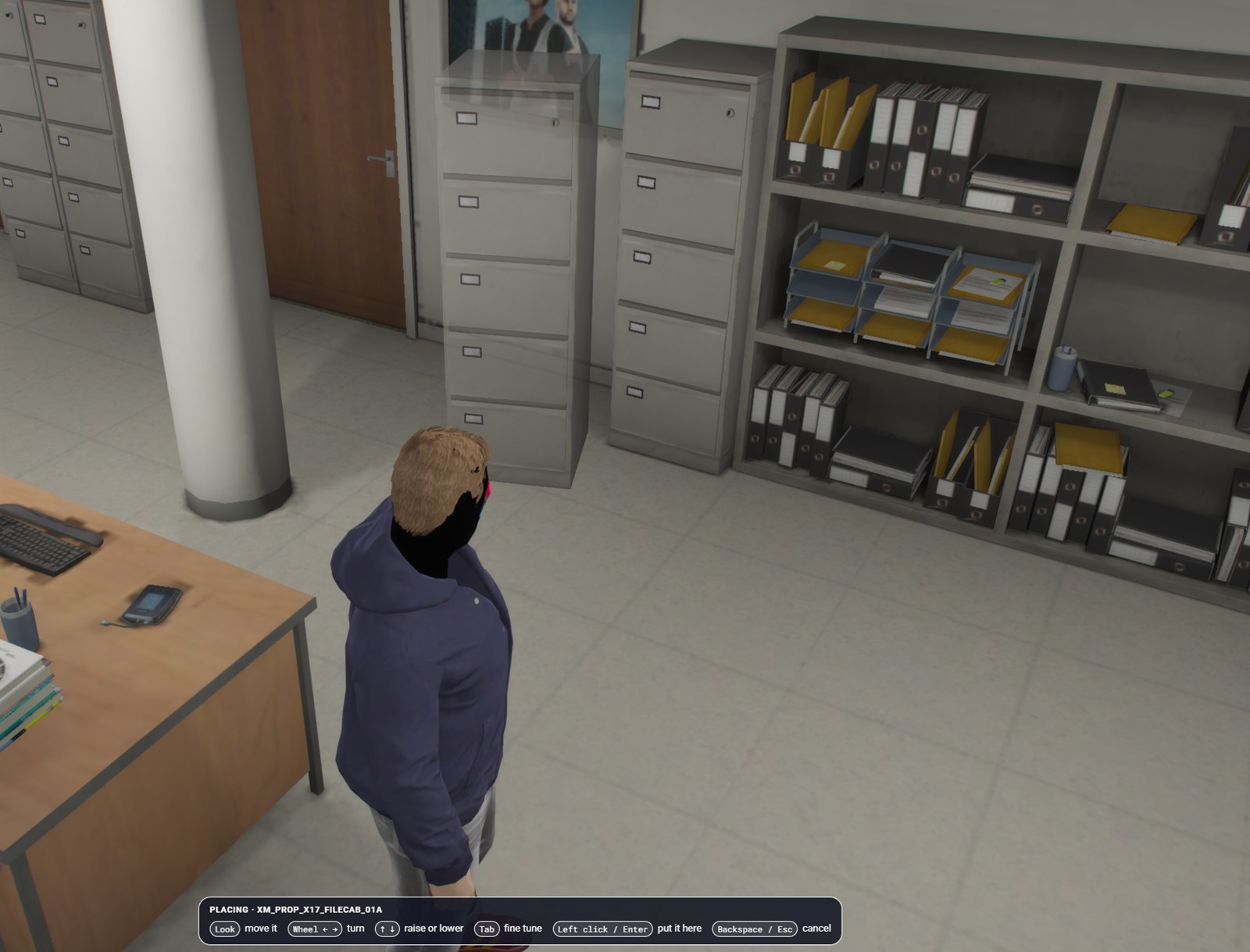
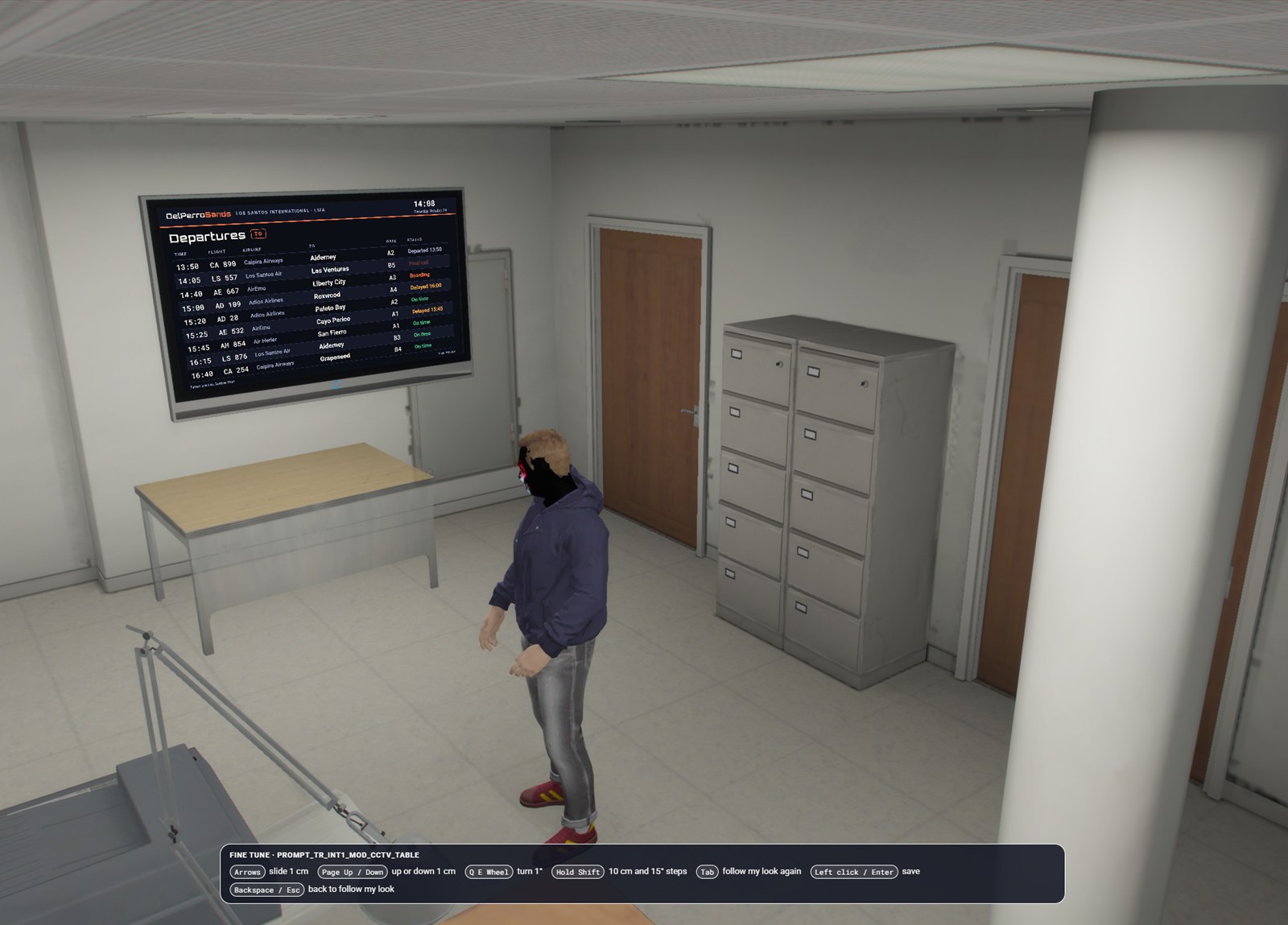
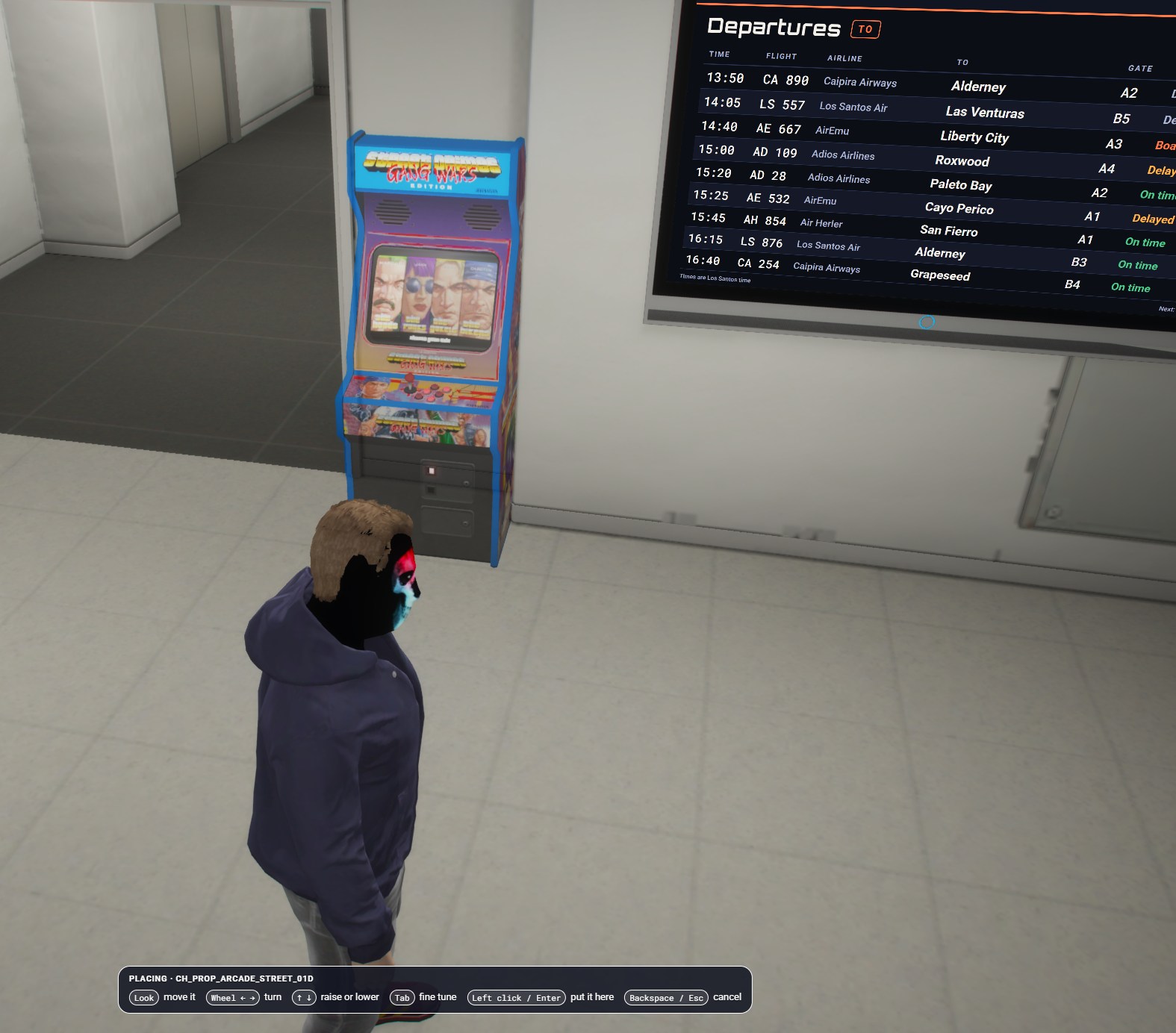
The Place tab lists the prop library, searchable and grouped by category, each piece with a thumbnail. Pick one and it follows your view; Tab switches to fine tune, where the arrows slide it 1 cm, Page Up and Page Down raise it 1 cm, and Q, E or the wheel turn it 1 degree (10 cm and 15 degrees with Shift). Left click or Enter saves it. Each room keeps named looks, so the same room can switch between saved layouts.
Shells
The Shells tab lists every shell and real interior the server knows about, with its pack, type and whether it is furnished. Pick one and it floats in the sky, so open-sided shells can be seen from every side; drag or use the arrows to turn it, the wheel to zoom, and Enter to walk inside before you commit to it.
Inspect and spots
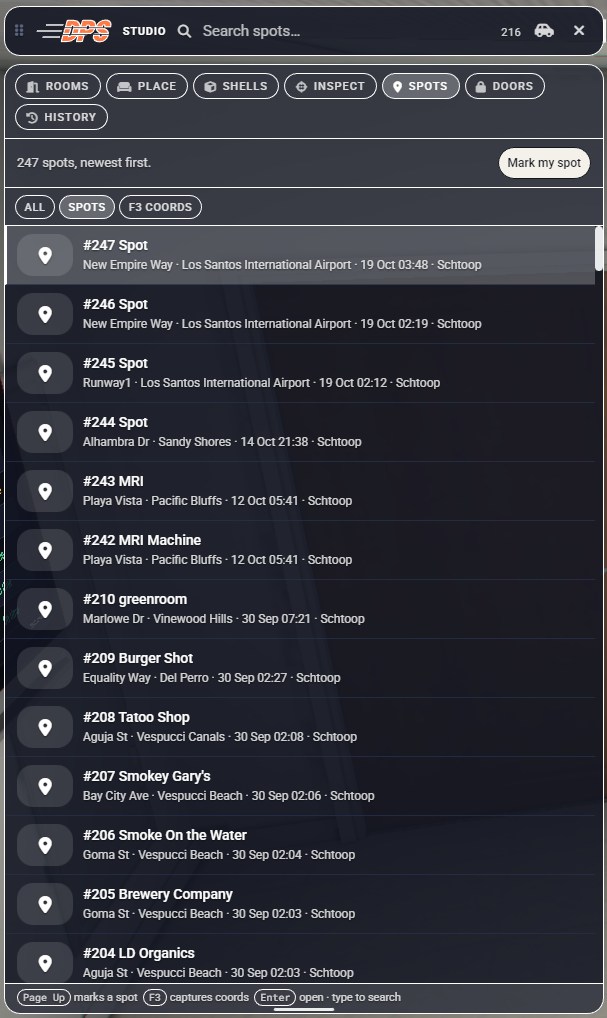
Hold middle mouse and aim at anything to see what it is: model name, kind, hash and exact position. Spots are saved positions, made with Page Up (/spot) or F3 (/pos), each with the street and area it was taken in, and one click teleports you back to it.
Doors
The Doors tab manages the city’s ox_doorlock doors in one list: rename them, lock or unlock them, set who may open them, and add a new single or double door by clicking it in the world. A room can own doors, so changing the room’s access updates them all.
History
Every room and door change is written to History with who made it and when. Restore a room to how it was before a change, bring back a deleted room, or put a door back.
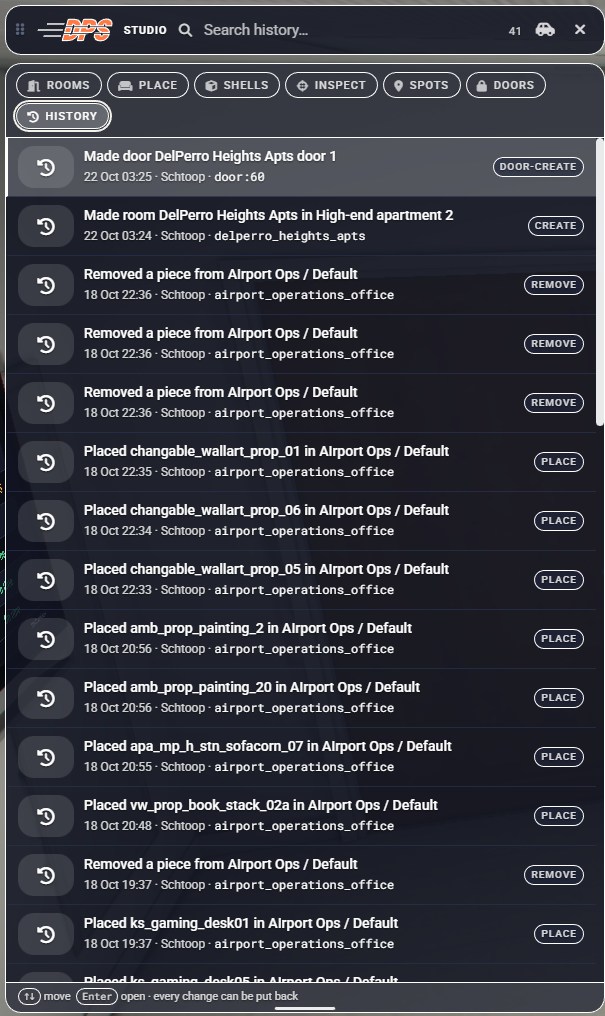
Photo booth
The thumbnails in the Place tab come from the photo booth. It takes every library piece up into the sky one at a time, photographs it alone, cuts it out and uploads it. A run can be stopped with Backspace and carries on where it left off next time.
Requirements
Required by the manifest:
ox_liboxmysql
Needed for the matching features:
qbx_core(job and gang lists and player data for room and door access)qs-housing(Studio reads its shell and furniture lists; without it those lists are empty)ox_doorlock(Doors tab, door access hook, room doors)ox_inventory(key item list and key item checks on room doors)bob74_ipl(interior rooms and interior styles)screencapture(photo booth and/mapflyover)- A weather sync resource that answers
qb-weathersync:client:DisableSyncandqb-weathersync:client:EnableSync - A Fivemanage image key, only for the photo booth
Installation
- Put the folder in your resources directory as
dps-studio. - The prop library (
html/library.json) ships with the resource. Rebuild it withtools/build_library.pyafter adding prop packs. - Keep the resource folder writable by the server if you use
/mapflyover, which writes pictures intoflyover/shots/. - Add
ensure dps-studiotoserver.cfgafter its dependencies (ox_lib, oxmysql, qbx_core, ox_inventory, qs-housing, ox_doorlock, screencapture, bob74_ipl). - Give admins the permissions:
add_ace group.admin dps.entityselector allow, plusadd_ace group.admin command.doorlock allowto create or remove doors from the Doors tab. - Optional, for the photo booth: set the convar
dps:fivemanage_imageto your Fivemanage key inserver.cfg. - Start the server. The
dps_studio_*tables are created on first start.
On first start Studio also imports any rooms and spots left in its import/ folder, once.
Configuration
There is no config file. The main values are constants at the top of the source files.
| File | Constant | Default | What it does |
|---|---|---|---|
shared/logic.lua | Studio.MAX_PIECES | 400 | Most pieces in one look |
shared/logic.lua | Studio.DEPTH | 60.0 | How far under its door a shell room sits (metres) |
server/main.lua | ACE | dps.entityselector | Permission for Studio |
server/main.lua | KEEP_SNAPSHOTS | 200 | Restorable history snapshots per room |
client/booth.lua | BIG | 12.0 | Pieces larger than this (metres) are not photographed |
client/booth.lua | FOV | 40.0 | Photo booth camera field of view |
client/flyover.lua | FOV | 60.0 | Flyover camera field of view |
The convar dps:fivemanage_image holds the photo upload key, and flyover/targets.json lists the map packs for the flyover.
Commands
| Command | Who | What it does |
|---|---|---|
/admin | Admins (dps.entityselector) | Open or close the Studio panel |
/mapflyover | Admins (dps.entityselector) | Start the map flyover (needs screencapture) |
/spot [words] | Admins | Save your position with the nearest prop, street and area (default key Page Up) |
/pos | Admins | Save your position and show a vector4(...) card (default key F3) |
| Middle mouse (hold) | Admins | Inspect the object you aim at (rebindable as +studio_scan) |
| E at a room door | All players | Enter or leave a room, if allowed |
| Backspace | Admins | Leave previews, placing, door picking, the photo booth and the flyover |
Credits
Written by DaemonAlex for Del Perro Sands. Studio absorbs three earlier DPS tools: the object inspector comes from dps-whatobject, the spot keys from dps-markspot, and saved portals are imported from dps-shellbrowser. Shells and furniture come from qs-housing, interiors from bob74_ipl, and door handling from ox_doorlock.